PDF accessibility, the full guide
Tagged PDFs, reading order, alternative text, table headers, accessible exports from Word and InDesign, and the Acrobat checks that matter most.
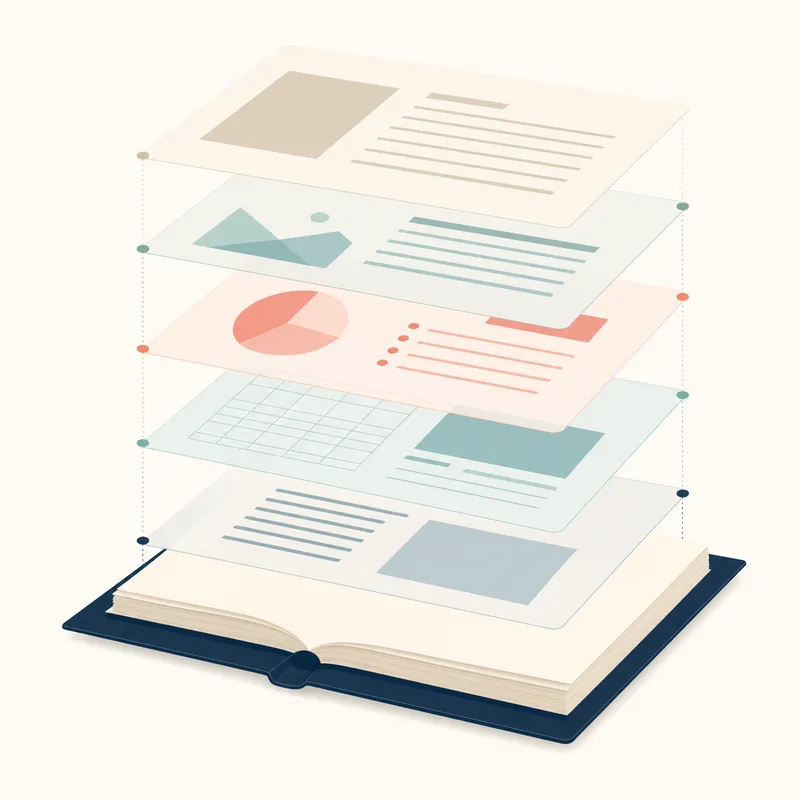
PDF accessibility is treated as the difficult cousin of web accessibility, often pushed to "we will fix it later." It does not have to be. Most accessibility issues in PDFs originate in the source document, where they are cheap to fix, and propagate into the export. This guide covers what makes a PDF accessible, how to produce one from common authoring tools, and how to audit an existing one.
What "tagged PDF" actually means
A tagged PDF carries a hidden structure tree alongside the visible content, equivalent to the DOM of a web page. Tags identify headings, paragraphs, lists, tables, figures and reading order. Without tags, a PDF is effectively a flat image of text, and screen readers are forced to guess at structure.
The format standard is PDF/UA (PDF Universal Accessibility, ISO 14289). PDF/UA-1 is the current widely-supported version. Treat PDF/UA-1 conformance as your accessibility target, not "tagged PDF" alone.
Producing accessible PDFs from Word
Microsoft Word is the most common starting point for accessibility-relevant Australian documents. The accessible export workflow:
- Build the source with proper heading styles. Use Heading 1, Heading 2, etc., not direct font-size formatting.
- Add alternative text to every image. Right-click, Edit Alt Text. Mark decorative images as decorative.
- Use Word's table tool. Mark the first row as a header row. Avoid merged cells and nested tables.
- Set the document language. File, Info, Properties, Advanced Properties, Custom, Language.
- Run Word's Accessibility Checker (Review tab, Check Accessibility) and resolve all issues.
- Export via File, Save As, PDF. Click Options. Tick "Document structure tags for accessibility" and "Document properties".
Producing accessible PDFs from InDesign
InDesign's accessibility export is more involved but produces better tag trees than Word for complex layouts. Key steps: use paragraph styles mapped to PDF tags, set the language at document level, add alt text via the Object Export Options, set the article order in the Articles panel (this controls reading order in the export), then export to "Adobe PDF (Interactive)" or "Adobe PDF (Print)" with "Create Tagged PDF" enabled.
The seven Acrobat checks that matter
Open the PDF in Acrobat Pro. Tools, Accessibility, Accessibility Check. The checker runs around 30 checks, but seven matter most for AA conformance:
- Document is tagged.
- Reading order matches visual order. Use the "Order" panel and walk through.
- Alt text is present on all figures.
- Tables have a header row marked as such.
- Document language is set.
- Document title is set.
- No security setting blocks screen-reader access.
Common failures and fixes
Most PDFs we audit fail on three things: untagged or partially-tagged content (export from Word with the wrong settings), tables marked as figures (wrong tag applied during export), and reading order that does not match the visual layout (multi-column documents are particularly prone). Each is fixable in Acrobat Pro post-export, but rebuilding from a corrected source is faster.
For document-heavy sites
If your site hosts more than 20 PDFs, automate accessibility checks. PAC 2024 (free, from the PDF Association) runs PDF/UA conformance checks at the command line. Wire it into your CI pipeline alongside your HTML accessibility scans.
Hosting accessible PDFs on this site
Accessible CMS hosts a library of accessibility-compliant PDFs from partner organisations including the Older Persons Advocacy Network, Seniors Rights Service, and the Zoe Belle Gender Collective. The full library is available at our resources page. Documents are hosted at original URL paths so academic and policy citations remain intact.